
An easy way of developing a plugin is by doing it inside the World Wind project. When your file is debugged you can just move the file into the Plugins directory where it should work as a plugin without modification. This tutorial shows how you could go about developing a plugin. There are many other ways, and a hard core developer could use a text editor. 😉
Contents |
In order to write plugins you will want to have the latest version of World Wind.
Refer to Setting Up SourceForge SVN for information on how to download the World Wind source code.
Step number 2 is building World Wind. Refer to Compiling the sources for instructions.
For this first tutorial we’re just going to create a plugin that adds itself as an item in the main menu, and displays a message when you click it.
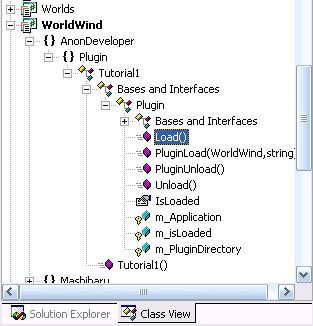
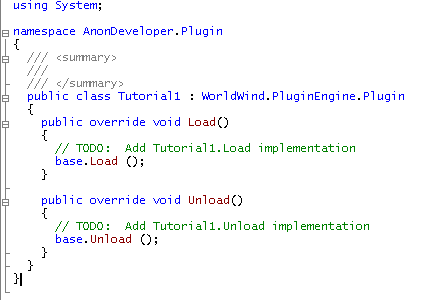
If you don’t see it, double click “Tutorial1” or the name of your class in the tree to open it in the editor.
Since we don’t use constructor in this sample, you can delete it.
public Tutorial1()
{
}
We willl now add a menu item and simple functionality to that menu item.
Add:
System.Windows.Forms.MenuItem menuItem;
to the top of your class.
Then add the following lines to your Load method:
// Add our plugin to the World Wind Tools menu
menuItem = new System.Windows.Forms.MenuItem();
menuItem.Text = "Tutorial1 test";
menuItem.Click += new System.EventHandler(menuItem_Click);
ParentApplication.ToolsMenu.MenuItems.Add(menuItem);
This will add the menu item to World Wind’s main menu and make sure menuItem_Click is called when the user selects our menu item.
Then add the following lines to the Unload method:
// Remove menu item
ParentApplication.ToolsMenu.MenuItems.Remove(menuItem);
This will clean up should the user decide to unload our plugin.
Finally we will add functionality to the menu item. For now we are just going to display a message box.
Add the method menuItem_Click like this:
void menuItem_Click(object sender, EventArgs e)
{
  System.Windows.Forms.MessageBox.Show("Tutorial1 works.");
}
The end result should look something like the following:
//----------------------------------------------------------------------------
// NAME: Tutorial1
// DESCRIPTION: My first plugin
// DEVELOPER: My name
// WEBSITE: http://www.mywebsite.com
//----------------------------------------------------------------------------
using System;
namespace AnonDeveloper.Plugin
{
  /// <summary>
  /// Tutorial1
  /// </summary>
  public class Tutorial1 : WorldWind.PluginEngine.Plugin
  {
    System.Windows.Forms.MenuItem menuItem;
    public override void Load()
    {
      // Add our plugin to the World Wind Tools menu
      menuItem = new System.Windows.Forms.MenuItem();
      menuItem.Text = "Tutorial1 test";
      menuItem.Click += new System.EventHandler(menuItem_Click);
      ParentApplication.ToolsMenu.MenuItems.Add(menuItem);
      base.Load();
    }
    public override void Unload()
    {
      // Clean up, remove menu item
      ParentApplication.ToolsMenu.MenuItems.Remove(menuItem);
      base.Unload ();
    }
    void menuItem_Click(object sender, EventArgs e)
    {
      // Fired when user clicks our main menu item.
      System.Windows.Forms.MessageBox.Show("Tutorial1 works.");
    }
  }
}
The comment header will be used by the Plugin Manager to give the user information about your plugin without actually having to compile it first. The header is optional, but recommended. While you are debugging your plugin inside WW this information will not show up (since it has been precompiled before launching WW).
When you have fixed any compile errors, press Run and watch World Wind load. World Wind will when compiled in Debug mode automatically load up any objects deriving from the “Plugin” base class.
But our plugin is new and thus not automatically loaded.
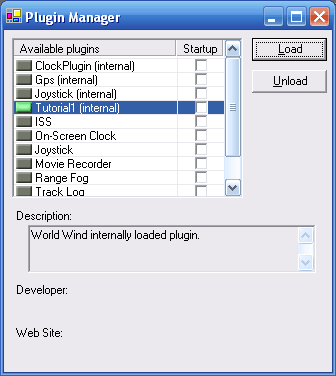
If a message pops up on screen, hooray, you just wrote your first World Wind plugin.
If you need to start up a debugger and see what is going on in your plugin you can use System.Diagnostics.Debugger.Launch() [1] or System.Diagnostics.Debugger.Break() to trigger a breakpoint if a debugger is already attached (ie. you are running it from VS.NET)
To use our plugin in the official release of 1.3.2 we have to copy Tutorial1.cs from WorldWind\WorldWind to Program Files\NASA\World Wind 1.3\Plugins.
Then repeat the steps in section 5 to load Tutorial1.cs in plugin manager.
If you are coding in a different language than C# or don’t want to modify the World Wind project there is an alternate way to debug your code.